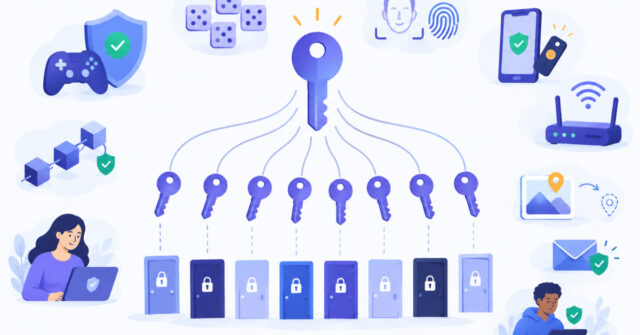
Yes, you can generate unique passwords for multiple accounts at once. The one-password-per-account rule is about which password you assign to each account, not whether you created them in one session. Generate a separate random password for every account, record which belongs where, and never give the same one to two accounts.
The Bulk Password Generator on Password Ideas can create a whole list in one go. What matters is what you do afterward: assign, save and protect that list. I cover those steps below, plus a short section for IT beginners.
Table of Contents

Is it safe to generate unique passwords for multiple accounts at once?
Yes, as long as each password goes to only one account. The rule is one password per account, and it describes how you assign passwords, not how you created them. Twenty random passwords made in a single session are twenty independent passwords. One password pasted into twenty accounts is password reuse, even if you generated it carefully.
Reuse is risky because of credential stuffing, which is when attackers take a username and password leaked from one site and try it on other sites. NIST SP 800-63B-4 (the final Revision 4, released in July 2025) says distinct passwords help prevent this after one site is compromised. CISA also advises a different password for each account.
| Approach | What you do | Result |
|---|---|---|
| Batch of independent passwords | Generate many, assign one to each account | Follows one password per account |
| One password everywhere | Generate one, apply it to many accounts | Password reuse |
| Batch with a repeated entry | Assign a duplicate by mistake | Accidental reuse, so scan the list |

Why do separate passwords limit the damage from a leak?
When every account has its own random password, a leak from one service gives an attacker nothing to try elsewhere. Each account stands on its own. You should still act on a breach: change that account’s password and check whether anything else is affected.
Length helps too. CISA’s guidance recommends at least 16 characters. NIST SP 800-63B-4 sets a 15-character minimum for passwords used as the only factor and an eight-character minimum when a password is just one part of multifactor authentication. Those are requirements for the services that check passwords, so an existing site may behave differently. NIST does not require mixed character types, and it advises against routine password changes unless there is evidence of compromise.
To see whether an old password you are replacing has appeared in known breaches, try the Password Leak Checker. It queries Have I Been Pwned using k-anonymity, a method where only the first 5 characters of a hashed password are sent, so the password itself stays on your device. Use it on old passwords, not on the new ones you just generated.

How do you generate unique passwords for multiple accounts at once, step by step?
Generating a list does not update any account. It only gives you candidate passwords, so you still need to assign and set each one. Here is a workflow you can follow today.
- List the accounts. Start with your email account, because it can reset many others, then banking accounts and other sensitive logins.
- Pick a length each service accepts. Aim for 16 or more characters where allowed. Account rules vary, and some sites cap length or reject certain symbols. The generator has include and exclude character options for those cases.
- Generate a batch. Choose a template or your own settings and the quantity. The page says it can produce up to 100 passwords per batch, and it states that generation runs in your browser. That is the site’s own claim, not an independent audit.
- Check for duplicates. Random output rarely repeats, but a quick scan of the list costs nothing.
- Assign one password to each account. Pair them directly in a reputable password manager or the password manager built into your browser, not in a loose document.
- Save first, then change. Store the pairing before you edit the account, so a closed tab cannot lose it.
- Change the password and confirm it. Sign out, then sign in again using the saved entry.
- Turn on multifactor authentication. This adds a second proof of identity, such as an app code or a passkey, which is a sign-in method based on a cryptographic key pair stored on your device. CISA and the UK NCSC both recommend it.
For a single new account, the Secure Password Generator lets you set length and character types. If a strength checker scores a generated password lower than you expected, this article on why high entropy can still get a weak strength score explains the gap.
How do you keep the exported list private?
The Bulk Password Generator can export TXT, CSV, JSON or TSV files. Treat every one of them as sensitive plaintext. The UK NCSC notes that passwords exported to a plaintext file are unprotected. If someone sees that file, they see many passwords at once, even though each one is different.
- Keep the file on your own device, away from shared computers and shared or synced folders.
- Do not send it by unprotected email or chat.
- Import it into secure storage, such as a reputable password manager, if you need to keep the pairings.
- Delete downloaded and copied files once you have saved the passwords, and clear your clipboard history if your device keeps one.
If you must hold a list briefly, the Text Encryption tool can encrypt text with a password using AES-256-GCM in your browser. You then have to protect and remember that encryption password, so a password manager is usually simpler.
What if the exported list might have been exposed?
If one account’s password leaks, change that password. If the whole exported list may have been seen, replace every password assigned from it, starting with email and banking, and confirm multifactor authentication is active on those accounts.
Deleting the file helps going forward, but it cannot undo an exposure that already happened. Do not assume a deleted copy means the passwords are safe again.
For IT beginners: what does unique mean to a website?
A website should not store your password as plain text. It stores a hash, a one-way scrambled version of the password. Each unique password produces its own hash, so a leak from one site does not point to your other accounts.
Randomly generated passwords have high entropy, which is a measure of how unpredictable a password is. Developers should store hashes made with a slow algorithm such as bcrypt or Argon2, as OWASP guidance advises. The Password Hash Generator shows bcrypt, SHA-256 and other hashes in your browser. Use sample values there to learn, not your real passwords. The bulk tool is also handy for creating test credentials in development environments.
Frequently asked questions
Does generating 50 passwords at once mean I am reusing a password?
No. Reuse happens when you assign the same password to more than one account. Fifty independent random passwords, each assigned to a different account, follow the one-password-per-account rule.
Does generating a list change my accounts automatically?
No. The generator only creates candidate passwords. You still need to assign each one to an account, save it, and then set it on that account yourself.
Can I safely keep the exported file?
Only with appropriate protection. TXT, CSV, JSON and TSV exports are readable plaintext unless you protect them separately. Keep them private, import them into secure storage if needed, and remove unnecessary copies.
How many passwords can the Bulk Password Generator make at once?
The page says it can produce up to 100 passwords per batch, with templates, length and character options, and exports in TXT, CSV, JSON or TSV.
Are batch passwords less secure than ones generated individually?
The site states that each password in a batch uses the same cryptographically secure random generation as its single password generator. That is the site’s claim. In practice, your safety depends mostly on assigning each password once and storing the list privately.
Do I need to change all these passwords regularly?
No. NIST advises against routine password changes without evidence of compromise. Change a password if its account or an exported list may have been exposed.
What if a website rejects a generated password?
Account rules vary. Adjust the length or exclude characters the site does not accept, then generate a new one. Do not fall back on reusing a password you already use elsewhere.
Next steps
You can generate unique passwords for multiple accounts at once, and it supports the one-password-per-account rule as long as each result goes to a single account. The quick recap:
- Generate one random password per account and scan the list for duplicates.
- Assign, save and test each one, starting with email and banking.
- Turn on multifactor authentication or passkeys where offered.
- Treat any export as sensitive plaintext and remove files you no longer need.
For a printable list of next steps, the Password Safety Checklist is a free one-page PDF.
Related tools and resources on Password Ideas:
- Bulk Password Generator
- Password Leak Checker
- Password Safety Checklist (PDF)
- High Password Entropy but Weak Strength Score: Why It Happens