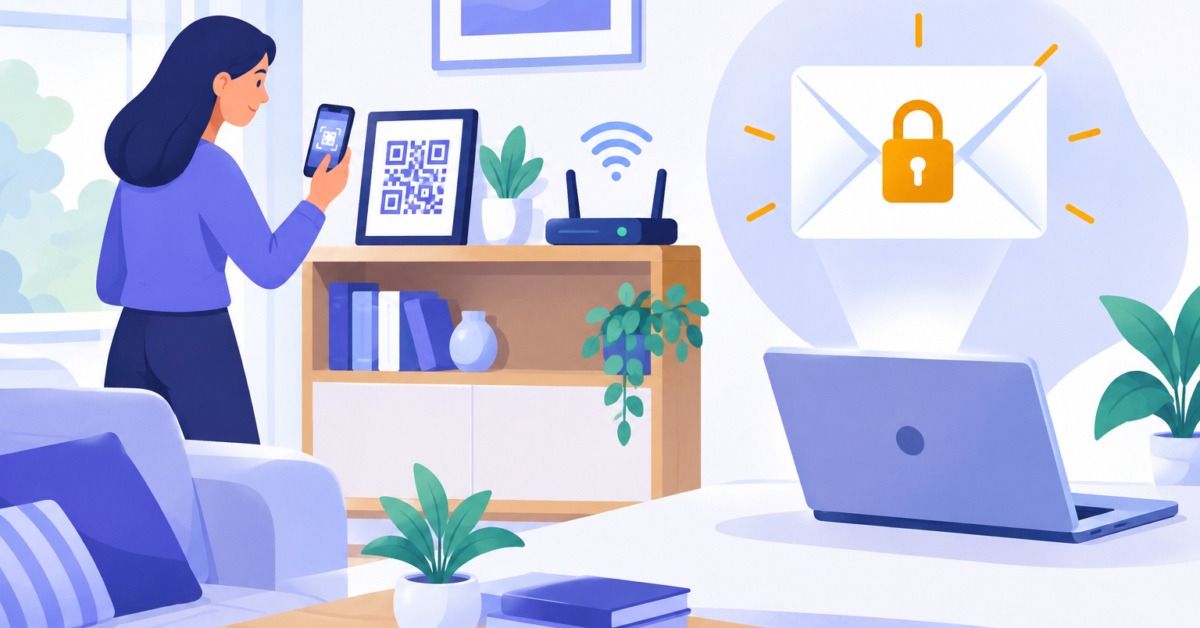
Does a WiFi QR code show your password? In effect, yes. A standard password-protected code stores the network name, security type, and password. It saves guests typing but does not keep the password secret, because anyone with the printout, a photo, or the image file can decode it. Treat the code like the password itself.
This guide explains what sits inside the code, what scanning does and does not change, and when to set up a separate guest network before you make one. I checked the details against the QR format documentation and consumer guidance from the FTC in October 2026.
Table of Contents

What is stored inside a WiFi QR code?
A WiFi QR code is a square barcode that packs a short line of text, called the payload, into a pattern a phone camera can read. For WiFi, that line follows a documented layout. The ZXing barcode contents documentation (last edited January 27, 2021) describes it, and here it is with obviously fake values:
WIFI:T:WPA;S:ExampleNet;P:not-a-real-password;;
Tis the security type, such as WPA. For an open network it isnopass, so there is no WiFi password to include.Sis the SSID, which is simply the network name your devices list.Pis the password, stored as plain text inside the code.
That last line is the key point. A QR code is a way to package credentials, not a replacement for them. It does not expire after one scan, and it does not lock the password away. Please create your own WiFi password rather than copying the sample above.
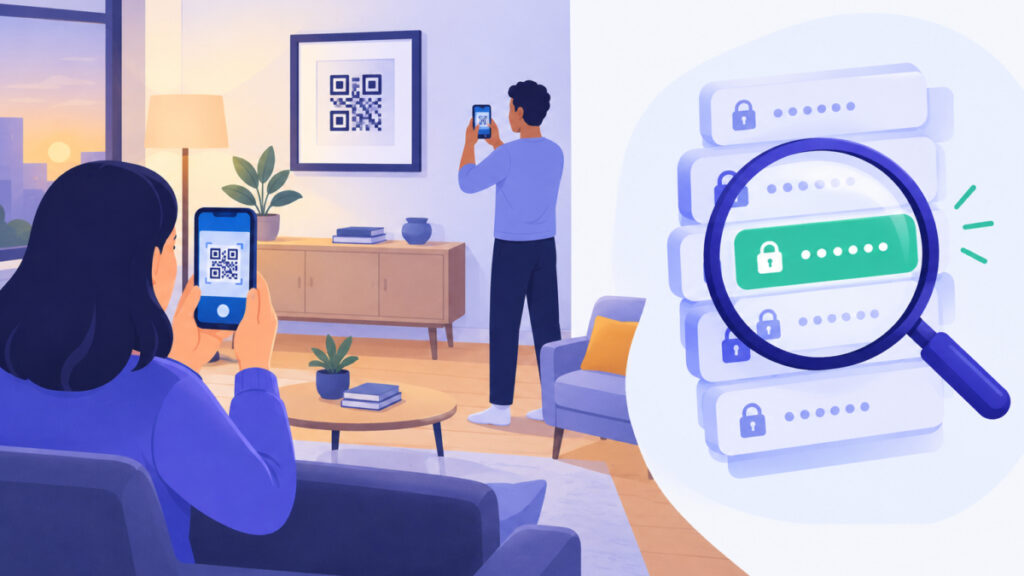
Does a WiFi QR code show your password when someone scans it?
Often the phone shows only a Join prompt with the network name, not the password. That can feel private, but it is a behavior of the scanning app, not protection built into the code. Apple and Google both publish instructions for QR-based WiFi sharing, and the join screen varies by device, so I cannot promise what every phone displays.
What matters is the image itself. Anyone who has it can run it through a decoder and read the password field. Decoding does not require being in WiFi range; only connecting does. Treat each of these as a copy of the password:
| Where the code lives | What it means |
|---|---|
| Printed sheet on a wall | Anyone who can see it can photograph it |
| Photo of the printout | Can be shared or saved in a photo album |
| Downloaded PNG or SVG file | Can be forwarded like any other image |
WPA2 and WPA3 are the security standards that encrypt your traffic over the air. They protect the wireless connection, but they do not hide a password you deliberately put in a visible image.
When should you make a guest network before creating a code?
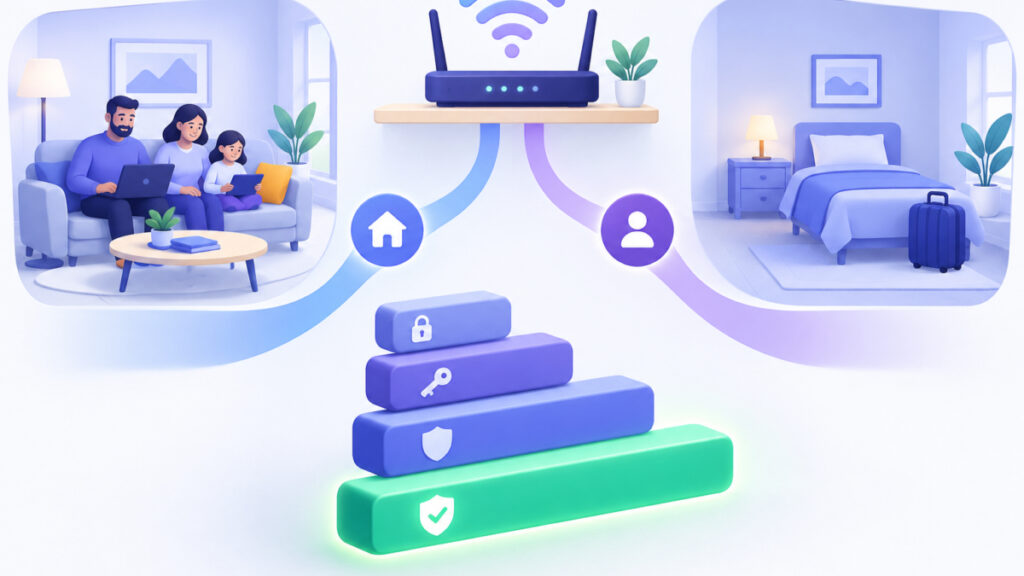
A guest network is a second WiFi name and password on the same router, meant for visitors. The FTC’s home WiFi guidance, dated December 30, 2022, recommends one because fewer people receive your primary password and your guests’ devices stay off your primary network. The same page recommends WPA3 Personal or WPA2 Personal and calls WEP and older WPA outdated.
Set up a guest network first whenever the code will be printed for visitors, customers, event attendees, short-term renters, or anyone else who should not have your primary password. If the code is only for people already living with you, your primary network may be fine, as long as you keep the sheet private.
- Give the guest network its own name and its own password, different from the primary one.
- Check the router’s guest settings to confirm they limit access to the primary network and local devices. Settings vary by router, so I would not assume every guest network is isolated by default.
- Choose a long guest password. The Passphrase Generator can build a multi-word option with your chosen word count and separator.
For more ideas on router passphrases, the Password Ideas for WiFi page shows pattern structures rather than finished passwords, so you can generate your own.
How do you make a guest WiFi QR code and print it safely?
- Create the guest network in your router settings, with its own name and password, using WPA3 Personal or WPA2 Personal.
- Open the WiFi QR Code Generator and enter the guest network name, the guest password, and the matching security type. It supports WPA/WPA2/WPA3, WEP, and open networks, and it has options for a hidden network name, colors, and size.
- Generate the code. The generator works in your browser, and its page states that your WiFi credentials never leave your device.
- Download the PNG or SVG file, or print directly. Check the print preview first, because the page states that printing includes the WiFi password as readable text. Guard both the text and the image.
- Scan the result with your own phone to confirm it joins the guest network, not the primary one.
- Place the sheet only where intended guests will see it.
Wording matters here. A guest code lets visitors join without typing the password, or without sharing your primary-network password when it holds separate guest credentials. It does not keep the guest password secret. When you are done, the printable Password Safety Checklist covers other account actions worth doing this week.
What should you do if a WiFi QR code is exposed?
If a code reaches people it was not meant for, remove the display first, then change the password for the affected network in your router settings. The old code stops being useful for joining once the password changes. Generate a fresh code with the new password and reconnect your own devices.
This is where a guest network pays off. If only the guest code leaked, you change the guest password and leave the primary network alone. After changing it, you can test the new passphrase with the Password Strength Checker, which analyzes it in the browser, and keep it different from every other password you use.
Avoid the open-network shortcut as a fix. An open network has no WiFi password to leak, but it also has no password protecting it, so a protected guest network is the calmer choice for most homes.
Frequently asked questions
Does the password appear on the phone when I scan a WiFi QR code?
Often the phone shows a Join prompt with the network name rather than the password. The interface varies by device, and the password is still stored in the code, so anyone who decodes the image can read it.
Can someone reuse a photo of my WiFi QR code?
A photo contains the same data as the original. Anyone can decode it without being near your router, but they need to be within WiFi range to connect. If the password has not changed, the photo still holds a working password.
Does a guest network keep my main password secret?
Only if the QR code contains the guest network’s own name and password. If you enter your primary credentials, the code holds your primary password, even if you call it a guest code.
Is an open-network QR code a safer choice?
An open network has no WiFi password, so there is nothing to leak, but there is also no password protecting access. For most homes and small businesses I would use a protected guest network instead.
Should I use WEP for the code?
No. The FTC’s home WiFi guidance, dated December 30, 2022, calls WEP and older WPA outdated and recommends WPA3 Personal or WPA2 Personal. The generator can create WEP codes, but that does not make WEP a good choice.
What should I do if my WiFi QR code is exposed?
Remove the printed or displayed code, change the password for the affected network in your router settings, then make a new code. If the leaked code was for a guest network, you only need to change the guest password.
Does the WiFi QR Code Generator send my details anywhere?
The tool page states that codes are generated in your browser and your WiFi credentials never leave your device. It also warns that printing the page includes the password as readable text, so check the print preview.
Next steps
So, does a WiFi QR code show your password? It carries the password inside the image, even if a phone only shows a Join prompt. Create a guest network first for visitors, use unique guest credentials, check the print preview, place the code only where intended guests can see it, and change the password if it spreads further than planned.
Related tools and resources on Password Ideas: